

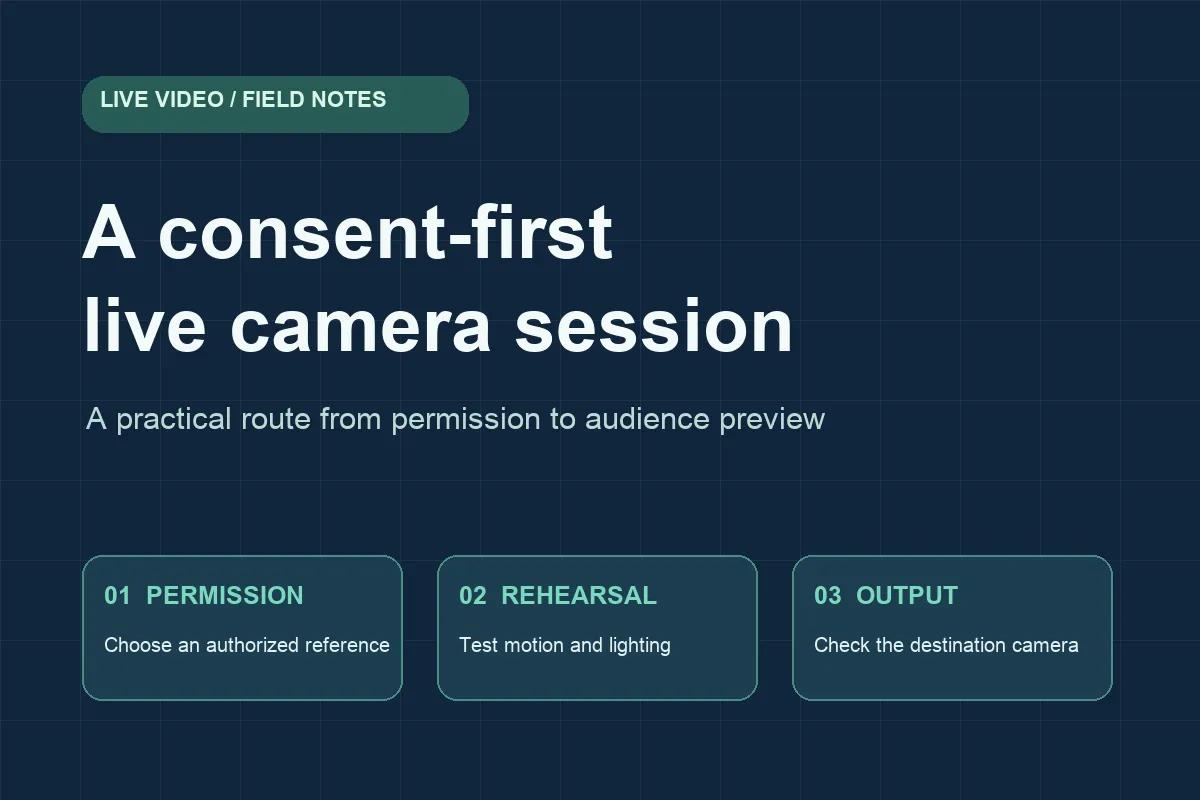
The hard part of using a camera effect in a call is not choosing a striking reference image. It is making sure everyone knows what they will see, the result holds up when you move, and the recording or stream does not mislead viewers afterward. A ten-second preview can look convincing while a full conversation exposes delays, unstable edges, or confusing expectations. A small rehearsal solves more of these problems than a long search for the “perfect” picture.
Decide what the effect is for
Start with the audience and context. A character effect in a casual game night has different expectations from an effect in a public interview or a training video. Write one sentence describing the purpose: “I want to appear as a fictional character in a short live segment,” for example. If that sentence depends on viewers believing the character is a real person, reconsider the plan. The effect should support the story, not hide who is speaking.
Next, choose a reference image you have the right to use. A self-portrait, licensed character, or image supplied with permission is easier to explain than a photo taken from another person's social profile. Permission to view a photo is not permission to imitate someone in a livestream. If a real person is involved, agree on the setting, audience, recording plan, and whether clips may be shared later. Keep that agreement separate from the technical setup so a successful test is not mistaken for consent.
Map the video path before you rehearse
There are two common paths. A browser preview keeps the transformed video inside the webpage. That is convenient for trying a look or making a short screen recording. A virtual camera exposes the transformed video as a camera source that a meeting or streaming app can select. The distinction matters because a browser preview can look right while the call app is still broadcasting your physical camera.
Draw the path on a note: physical camera → effect → preview → meeting or recording app → audience. Then test each handoff. If you plan to use a virtual camera, choose it inside the destination app and confirm its preview before inviting anyone. Check whether the app automatically switches back to the physical camera after a restart or device change. If you only need a browser preview, do not assume it will appear in Zoom, OBS, or another program without a separate capture step.
Rehearse the movements people actually make
A useful test is a one-minute conversation, not a still screenshot. Record a baseline with the effect off, then repeat the same sequence with the effect on: speak a few sentences, turn your head left and right, look down, lean closer, move back, and briefly raise a hand near your face. Keep the room light and camera position consistent between passes. Otherwise, a difference in the result may come from changed lighting rather than the effect.
If you are evaluating live swap face, the browser studio lets you choose a reference and see the generated video beside your camera preview. Its desktop app is intended for the separate virtual-camera route. Use the preview as a rehearsal tool, then check the destination app itself when the audience will see that output. The question is not whether one frame looks impressive; it is whether speech, motion, and recovery remain understandable throughout the planned segment.
Watch for three types of failure. First, does the face boundary drift around hair, glasses, or a hand? Second, does the expression still match the speaker, especially during blinks and wide mouth movements? Third, does the result recover after a temporary obstruction or quick turn? Note the time of each issue rather than calling the whole test “good” or “bad.” A timestamp makes it possible to compare settings without relying on memory.
Decide what viewers need to know
Disclosure should fit the context. In a private game, a brief note in the invitation may be enough. In a public stream or a video that may be clipped and reposted, say that the on-screen face is an effect and identify the performer or creator where appropriate. Put that context close to the content, because captions and reposts can separate a clip from its original introduction.
Also plan a fallback. If the effect freezes or the virtual camera disappears, switch to a known camera source or a static title card rather than silently continuing with an unintended feed. Test the stop control before going live. If someone changes their mind about their likeness being used, stop and remove the reference from the session. Technical convenience does not override that request.
Keep a short session record
After the rehearsal, write down the reference's permission status, camera and lighting setup, destination app, three timestamps of any visible problems, and the chosen fallback. A one-page record is enough. It gives collaborators a shared basis for deciding whether the effect suits this particular use. It also prevents a polished still frame from becoming the only evidence considered.
The best live effect is not the one with the most dramatic preview. It is the one whose setup, limitations, and disclosure match the actual audience. Treat the rehearsal as a production check: verify the path, watch real movement, make consent explicit, and be ready to stop.
Author note: This AI-assisted draft was prepared under the Content True team's editorial direction. The author is affiliated with the linked tool. It is prepared for LivePositively's editorial review and does not report independent performance testing.